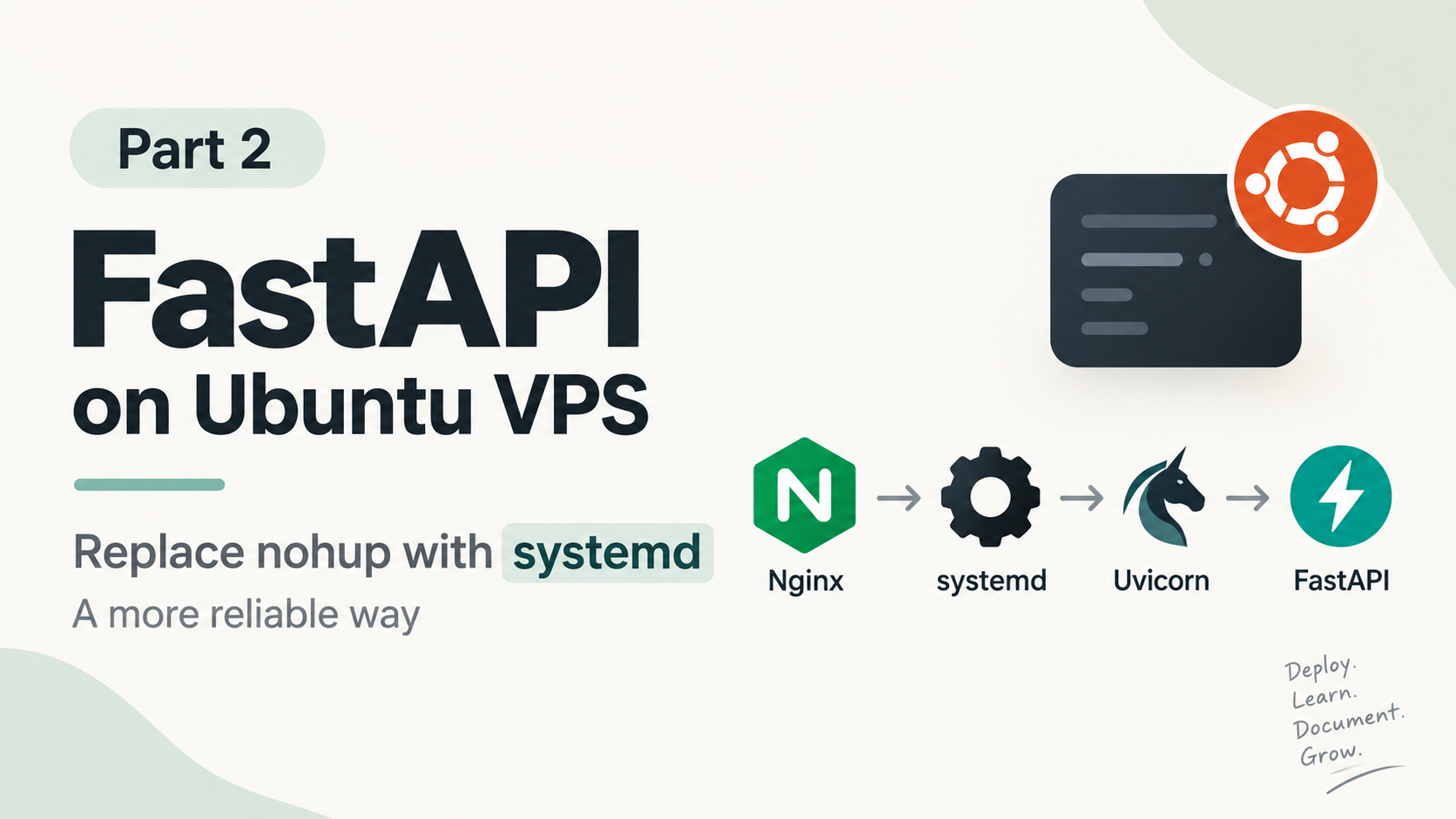
In the previous part, I deployed my FastAPI application on an Ubuntu VPS and used nohup to keep Uvicorn running after closing the SSH connection.
That worked, but I wanted to do it in a proper way.
If I use nohup, I need to manually start the application again if the server restarts. Also, I need to manually manage the process.
So this time, I decided to use systemd.
Why I wanted to move away from nohup
Earlier, I was running my application like this:
nohup uvicorn app.main:app --host 0.0.0.0 --port 8000 > app.log 2>&1 &This was useful for quickly running the application in the background.
But for a server, I wanted something that could properly manage my application.
With systemd, I can:
- Start the application
- Stop the application
- Restart the application
- Check its status
- View logs
- Automatically start the application after a server reboot
- Automatically restart it if it stops unexpectedly
So systemd felt like the better option.
1. Stop the old Uvicorn process
First, I checked whether Uvicorn was still running:
ps aux | grep uvicornI found the running process:
root ... /root/projects/backend/venv/bin/uvicorn app.main:app --host 0.0.0.0 --port 8000I stopped it using its process ID:
kill 33893Then I checked again to make sure the old process was gone.
At this point, I didn't want to start Uvicorn with nohup again.
2. Create a systemd service
I created a new service file:
sudo nano /etc/systemd/system/pocket-flow.serviceThen I added:
[Unit]
Description=Pocket Flow FastAPI Application
After=network.target

[Service]
User=root
WorkingDirectory=/root/projects/backend/pocket-flow-backend
ExecStart=/root/projects/backend/venv/bin/uvicorn app.main:app --host 127.0.0.1 --port 8000
Restart=always
RestartSec=5

[Install]
WantedBy=multi-user.target
There are a few things here that I wanted to understand.
WorkingDirectory
WorkingDirectory=/root/projects/backend/pocket-flow-backendThis tells systemd where my application is located.
ExecStart
ExecStart=/root/projects/backend/venv/bin/uvicorn app.main:app --host 127.0.0.1 --port 8000Here I'm directly using the Uvicorn inside my virtual environment.
This is important because systemd doesn't automatically activate my Python virtual environment like I do in an SSH terminal.
Instead of doing:
source venv/bin/activateI can directly use:
/root/projects/backend/venv/bin/uvicornRestart=always
Restart=alwaysThis tells systemd to restart the application if it stops.
I also added:
RestartSec=5so it waits a few seconds before trying again.
3. Why I changed 0.0.0.0 to 127.0.0.1
Previously, I was running:
--host 0.0.0.0This allows Uvicorn to listen on all network interfaces.
But now I already have Nginx handling the public requests.
So I changed it to:
--host 127.0.0.1Now Uvicorn only listens locally.
The flow is:
                         Internet
                            │
                            ↓
              api.pocket-flow.jotech.in
                            │
                            ↓
                     162.35.175.67
                            │
                            ↓
                        Nginx :443
                            │
                            ↓
                   127.0.0.1:8000
                            │
                            ↓
                        Uvicorn
                            │
                            ↓
                         FastAPI
Nginx is the public-facing server, while Uvicorn only needs to receive requests from Nginx on the same server.
I liked this setup better because I don't need to expose the application server directly when Nginx is already handling the incoming web traffic.
4. Reload systemd
After creating the service file, I needed to tell systemd about it:
sudo systemctl daemon-reloadThere was no output.
That's normal.
It means systemd reloaded its service configuration.
5. Start the FastAPI application
Then I started my service:
sudo systemctl start pocket-flowI checked the status:
sudo systemctl status pocket-flowAnd I got:
Active: active (running)So my FastAPI application was running successfully.
The status also showed:
Uvicorn running on http://127.0.0.1:8000This was exactly what I wanted.
6. Check the application logs
One useful thing about systemd is that I don't have to depend on the app.log file I used with nohup.
I can see the application logs using:
journalctl -u pocket-flowI can also follow the logs while the application is running:
journalctl -u pocket-flow -fThis is useful when I make a change and want to see what happened after restarting the application.
7. Automatically start after a server reboot
One of the main reasons I wanted to use systemd was to avoid manually starting my application after every server restart.
I enabled the service:
sudo systemctl enable pocket-flowIn my case, the service status already showed:
enabledSo systemd will start my FastAPI application automatically when the Ubuntu server boots.
This is one of the main differences compared with the nohup approach I was using before.
8. Useful commands I can use now
Now I can manage my application with simple commands.
Start
sudo systemctl start pocket-flowStop
sudo systemctl stop pocket-flowRestart
sudo systemctl restart pocket-flowCheck status
sudo systemctl status pocket-flowView logs
sudo journalctl -u pocket-flowFollow logs
sudo journalctl -u pocket-flow -fCheck if it starts automatically
sudo systemctl is-enabled pocket-flow9. What changed from Part 1?
In Part 1, I had:
Nginx
   ↓
Uvicorn
   ↓
FastAPI
But Uvicorn was being managed manually with nohup.
Now systemd manages Uvicorn:
                         Internet
                            │
                            ↓
              api.pocket-flow.jotech.in
                            │
                            ↓
                        Nginx :443
                            │
                            ↓
                   127.0.0.1:8000
                            │
                            ↓
                      systemd
                            │
                            ↓
                        Uvicorn
                            │
                            ↓
                         FastAPI
The important difference is that systemd is now responsible for keeping my FastAPI application running.
What I learned from Part 2
The biggest thing I understood from this part is that nohup is useful when I just want to keep a process running after closing SSH, but systemd makes much more sense when I'm actually running an application on a server.
I also learned that I don't need to activate my virtual environment every time when systemd starts the application. I can directly point ExecStart to the Uvicorn inside my virtual environment.
Now my FastAPI application can start automatically with the server, restart when needed, and I have a proper place to check the logs.
This is a small step, but it makes the deployment feel much more like a proper server setup rather than something I manually started from an SSH terminal.